



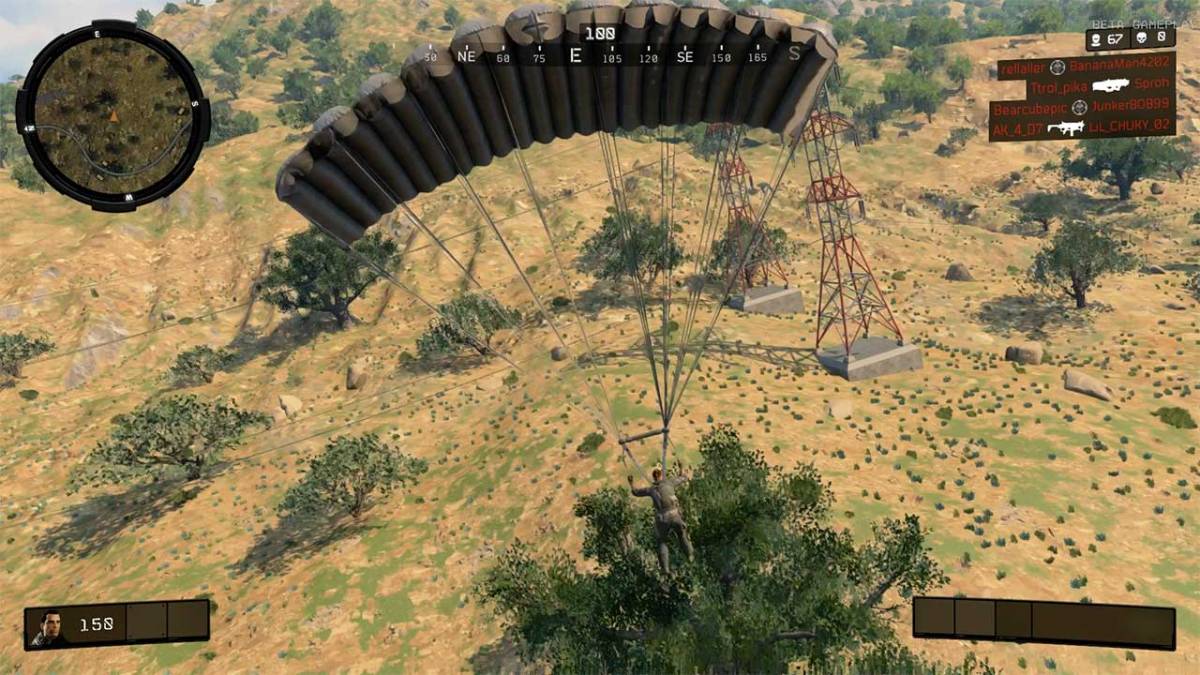

The mini-map is one of the most important items in a Battle Royale game. It will give you a sense of direction in terms of what’s close by, whether that’s the ever approaching blue zone, buildings, roads, and other important map items.
Some games do it round, some do it circular. In Blackout Battle Royale you can change your mini-map to whatever you’re most comfortable with. You can do this in the game’s options menu. This can be accessed from the main Blackout screen by pressing the Options Button (PlayStation 4) or Start Button (Xbox One).
Once in the menu, you can then head over to Options by pressing R1 (PlayStation 4) or RB (Xbox One). In the Options screen just hover over the Blackout option and select it. From there you’ll be able to select either a Square Mini-Map or a Circle Mini-Map.
Either way, you can customize Blackout to whatever helps you the most.



Published: Oct 12, 2018 12:53 pm