



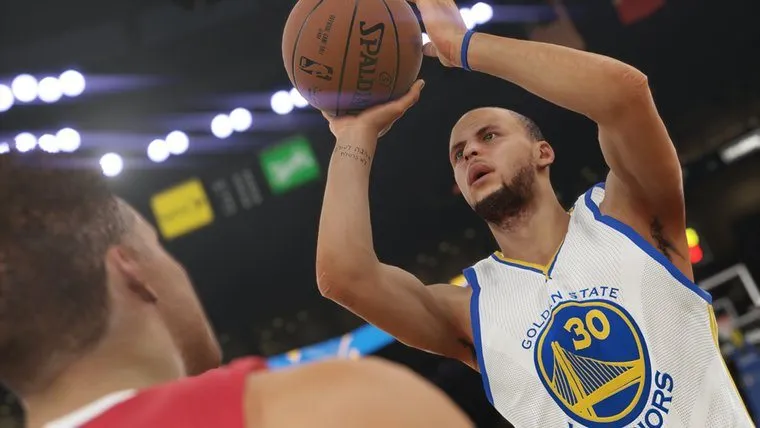

Some people that pre-ordered the digital version of NBA 2K16 have had trouble launching the game. 2K Support has given advice on what you should do.
They said: “If you’ve pre-ordered the game and attempted to install prior to 9/21 and are experiencing any issues, but aren’t using the Connected Standby/Instant On power mode, you might be dumped back to the Xbox One dashboard.
Fear not, though! There’s a workaround! All you have to do is uninstall the game from My Games & Apps and then install it again”
If you have Connected Standby/Instant On and are experiencing problems with the install, there is a different method that you have to follow outlined below.
Steps to see if you are Ready to Play or if you need to Uninstall and Reinstall a Game
- Navigate to My Games & Apps
- Find NBA 2K16’s tile in Games
- Make sure NBA 2K16 doesn’t show “Installing…” or “Queued”. If it does, wait for it to finish Installing.
- With the tile highlighted, press right trigger, left trigger and the view button on your controller at the same time to display the version number of the game installed.
If you have a lower version number, or if you don’t see any version number, but instead see a group of characters starting with “32da70e1…” then do the following to install the latest copy of the game:
- With the tile highlighted, press the menu button on your controller
- Select “Manage Game”
- In the Manage Game screen select the storage device the game is currently installed to
- Select “Uninstall”
- Once the game has uninstalled, return to My Games & Apps
- Scroll right to the “Ready to Install” section under Games
- Highlight the title’s tile
- Press A to select
- Choose “Install”




Published: Sep 25, 2015 12:55 am