




Dragon Ball Z may have become a global phenomenon over the years, but it is completely rooted in Japan from back when it was just a manga in weekly Shonen Jump. While the series has been dubbed around the world, some people still prefer to enjoy Dragon Ball in its native language of Japanese. Like most every Dragon Ball related game release in the West, Dragon Ball Z: Kakarot has an English dub as the default language for the game, but it is possible to change back to the original Japanese voice cast as well and this guide will explain how you can do that.
How To Change Voices To Japanese
Players starting up Dragon Ball Z: Kakarot will very quickly be introduced to the dub voice cast from Funimation for the various characters, which do a great job. However, many people prefer the original Japanese cast that has been doing the voices for even longer. For Goku specifically, Masako Nozawa has been doing the voice of Goku since he was a kid in the original Dragon Ball and is still voicing the character now at age 83. With being used to this version for so long, many people prefer this voice for Goku.
For the players that do like changing voices, this can be done very easily. There are no shenanigans involved where you have to pay for the Japanese voices as we’ve seen in the past a time or two. Instead, you can do it right from the menu, though not from the pause menu in-game.
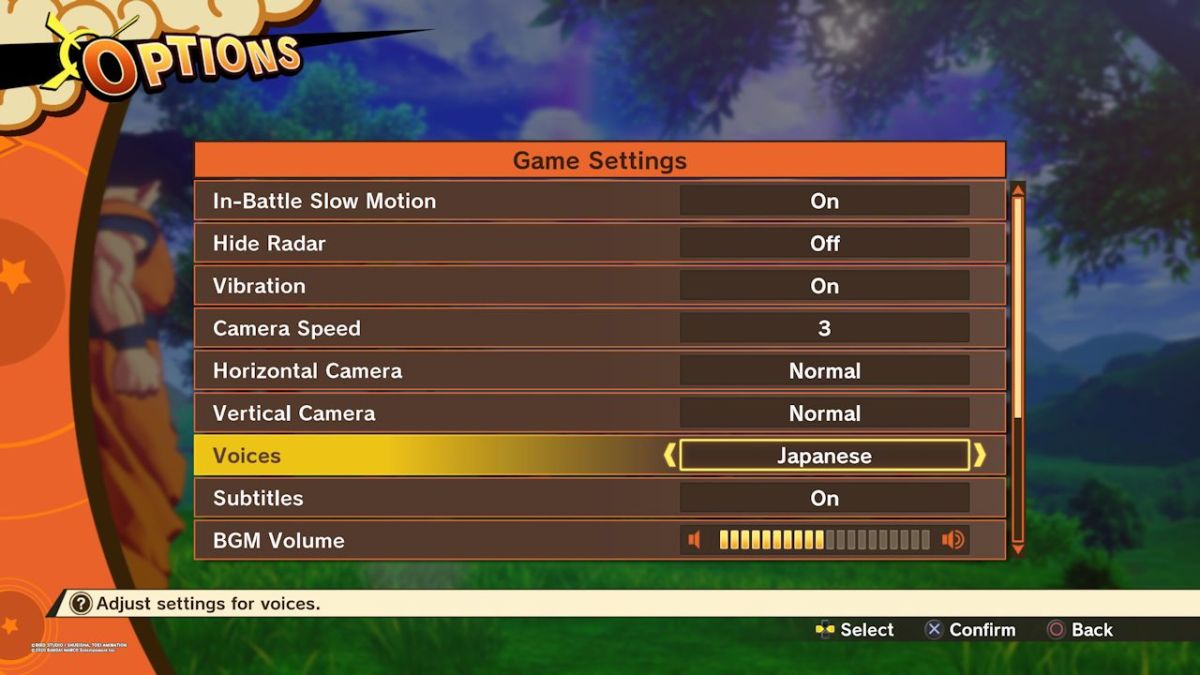
Instead, you have to be on the main menu when you start up the game. At this point, select “Options” and it will bring up a list of different settings you can adjust. Just scroll down to the “Voices” option and select it. Now you can move it over to Japanese if you would like and it will change the voices throughout the game to the Japanese ones.

Published: Jan 16, 2020 10:34 pm