





Valorant boasts one of the best technical performance rates of any online multiplayer shooter, but it still experiences its fair share of game-breaking glitches. One of the most frustrating is the Windows 10-exclusive “Van 9005” error, which has become the bane of many Valorant players’ existence over the last few days. Here is how to resolve the Van 9005 error in Valorant.
What Causes the Van 9005 Error in Valorant
The Van 9005 error in Valorant is caused by Windows 10’s Virtualization-based Security (or VBS) Setting. The VBS Setting is a security feature that creates an isolated virtual environment within your computer’s hard drive that protects the most vulnerable functions of your system from malicious code. Unfortunately, the latest version of Valorant requires Trusted Platform Module version 2.0 (or TMP 2.0) and Unified Extensible Firmware Interface (or UEFI) compliant hardware to run. If these parameters are not met, they will “clash” with VBS, creating the Van 9005 error.
How to Check If Your Computer Has TMP 2.0 and UEFI
If you’re encountering the Van 9005 error while trying to load up Valorant, you should ensure your computer has TMP 2.0 and UEFI before you try any of the fixes listed below. You can check both by following these instructions.
- How to Check if Your Computer Has UEFI Support
- Press your Windows Key
- Type in msinfo32 and hit Enter
- Once the System Information Window is open, check the “System Summary” on the left.
- Scroll down to your BIOS Mode and check if its value is “UEFI.”
- How to Check if Your Computer Has TMP 2.0 Support
- Press your Windows Key
- Type tpm. msc and hit Enter Afterward. You will be informed whether or not your computer has TMP 2.0
Related: Valorant: Best Killjoy Haven Setups
How to Turn Off VBS
If setting your BIOS and TMP to UEFI and TMP 2.0, then you may have to turn off VBS to play Valorant. To do this, you will need to get into your system’s settings. Here are the steps you need to follow to deactivate VBS.
- Press your Windows key.
- Type “Command Prompt” into the search bar.
- Paste the command “bcdedit /set hypervisorlaunchtype off” into the search bar.
- Restart your computer.
How to Contact Riot Support
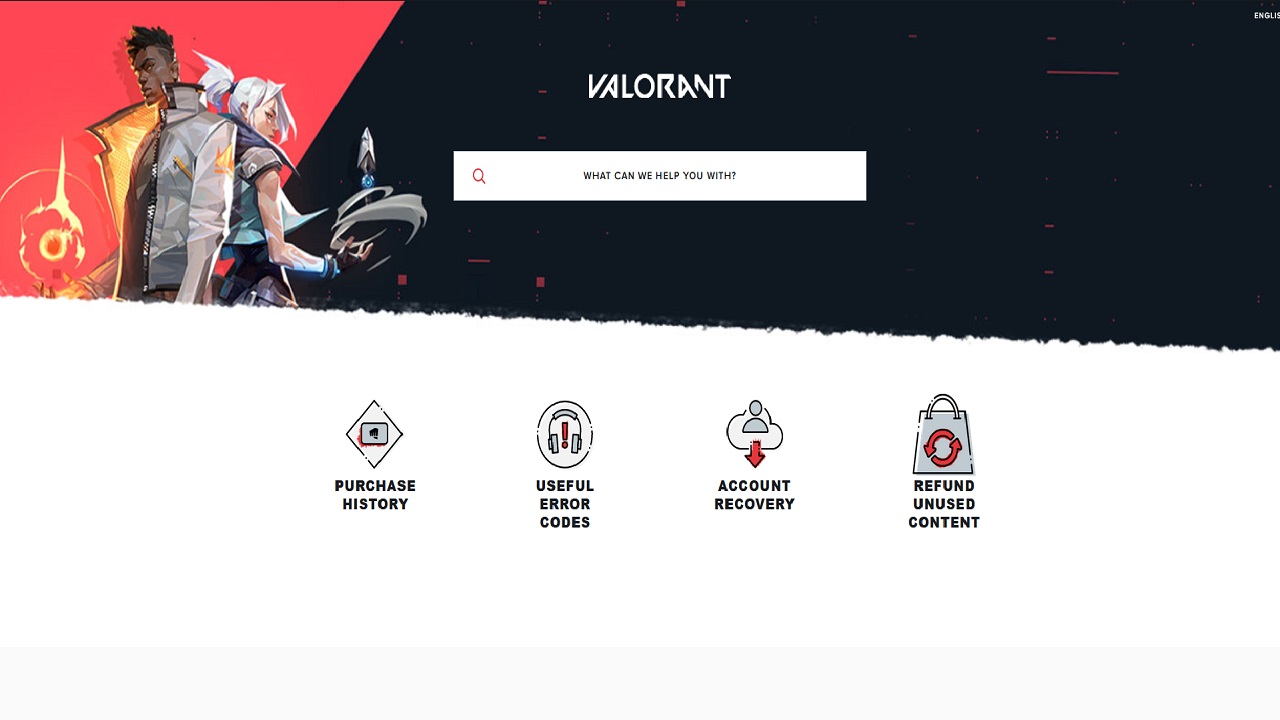
If these fixes fail, you may need to contact Riot Support, riot Games’ official technical support. You can access Riot Support’s main page by pasting the web address “https://support-valorant.riotgames.com/hc/en-us” into your browser’s address bar. Once there, you can type “How to fix Van 9005/” into the search bar. You should be linked to several articles with more in-depth solutions for resolving the issue.






Published: Jul 14, 2023 07:13 pm